Range field - Usage
Range fields work as a wrapper component when two related inputs describe one bounded interval with a clear start and end. They are often used with date, time or date-time inputs, but they also work with other paired inputs, e.g. number inputs for defining minimum and maximum allowed values.

- Start field
- Range separator
- End field
Variants
- Date range: Use this variant for calendar-based periods, e.g. maintenance windows or reporting periods
- Time range: Use this variant for time-only intervals, e.g. shifts or operating windows within a day
- Date-time range: Use this variant when both the day and the time are relevant, e.g. for event windows or analysis periods
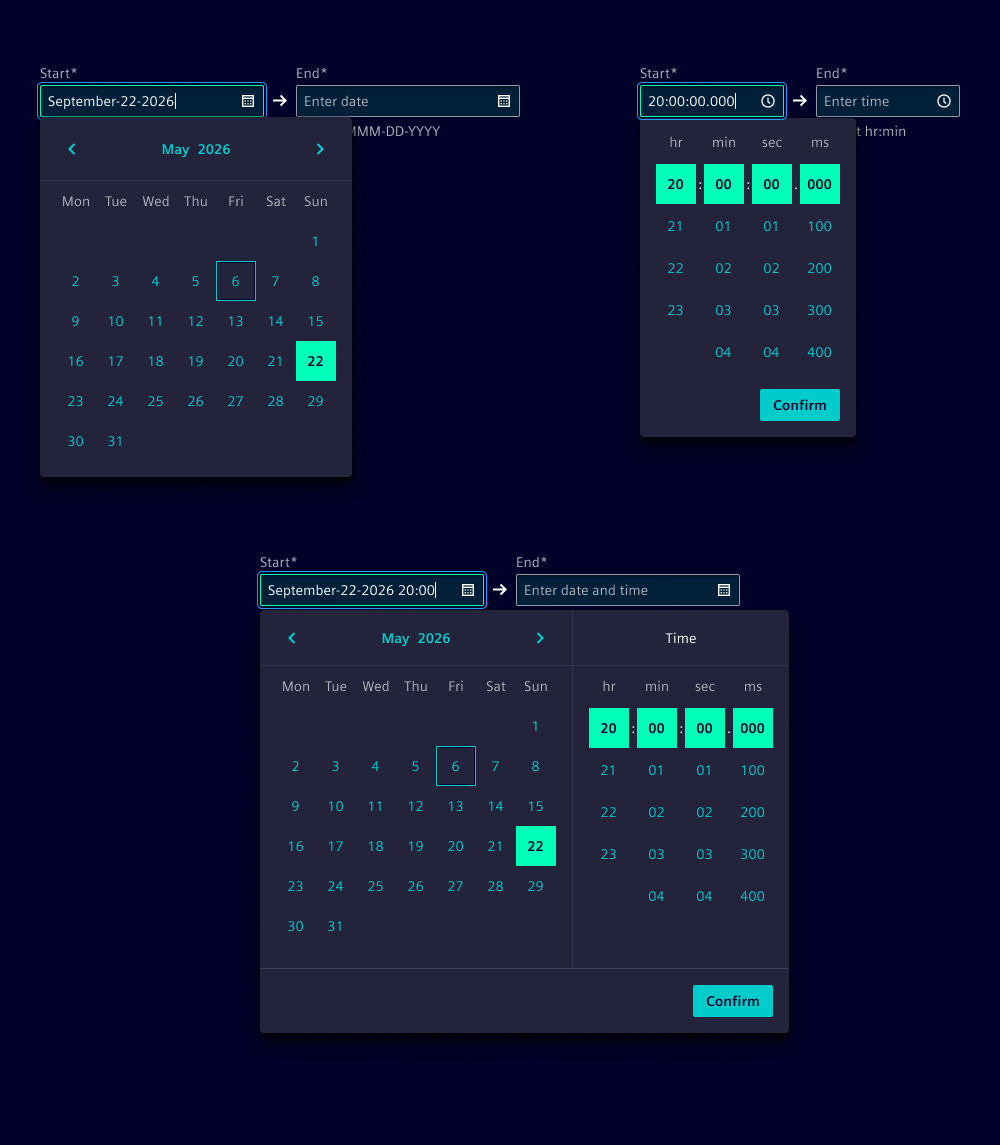
Options
- Labels: Label both inputs clearly, e.g. "Start date" and "End date" or "From" and "To". Keep labels short when the surrounding heading already explains the context.
- Arrow separator: The default arrow helps users read the direction from start to end. Hide it only when the relationship is already obvious from the surrounding layout or label.
- Validation and helper text: Use the validation and helper text of the paired inputs for field-specific guidance. Use surrounding form content when the message applies to the whole interval.
For the individual inputs, all available options of the paired input components stay available. See date input, time input and date time picker for component-specific guidance.
Behavior in context
- Interaction: Keep the earlier value first and the later value second so users can move through the range in a predictable order. Validate both fields individually and together. Make it clear when the end value is earlier or smaller than the start value.
- Overflow: Give both fields enough width to show the full value format without clipping. If space is limited, shorten surrounding labels before reducing the field width.
- Text truncation: Avoid truncating entered values by choosing an appropriate input width.
States
Range fields rely on the states of the paired inputs. Use the same guidance as date input and time input, and apply disabled or read-only states consistently to both inputs when the whole range is unavailable.
Dos and Don’ts
- Do use range fields when start and end values describe one bounded interval
- Do label both inputs clearly so users can scan the order quickly
- Do omit labels on both inputs consistently when the surrounding context already makes the range clear
- Do validate that the end value is not smaller or earlier than the start value
- Don’t use range fields for single values or unrelated inputs
- Don’t use different input types, formats or levels of precision within one range
- Don’t mix date, time and date-time inputs in one range