Select - Usage
The select component supports single or multiple selections and the editable variant allows users to add new items. We typically use select components in forms, filters and settings where users need to choose from predefined options.

- Label
- Required indicator
- Value
- Clear button
- Open dropdown button
- Container
- Dropdown list
- List header
- Selected list item
- Editable mode (add new items)
Options
- Label: See form field.
- Placeholder: Use a placeholder to provide information about what to enter or additional relevant context while the input field is empty. We typically use a placeholder when the label is not visible or we need to provide additional context.
- Helper text: See form field.
- Feedback text: See form field.
- Show clear button: Select components can have a dedicated button to easily clear the selection. Hide the button when offering users other ways to reset, e.g. a default item like "none", or if you aim for simplified keyboard accessibility.
- List header: Use an optional header to provide additional context or instructions about the items to help users understand choices better.
- Information for no matches: Set a message to be displayed when no item matches the inserted text.
- Editable: When enabled, users can add new items to the list.
- Multiselect: Allow users to select multiple items from the list.
- Collapse multiple selections: When enabled, selected items are collapsed into a counter instead of showing all selected items.
- Items:
- Label: Set a short and concise label for dropdown items.
- Selected: Mark selected items in the dropdown with a check mark.
- Disabled: Mark individual items as disabled when they cannot be selected in the current context. Disabled items are visually muted, skipped during keyboard navigation and cannot be picked via mouse or keyboard.
Behavior in context
- Validation: See validation.
- Interaction:
- Click or Enter key on button opens dropdown list.
- Typing in the input field filters the dropdown list.
- Arrow keys navigate within the dropdown list.
- Click or Enter selects a highlighted list item.
- Escape key closes dropdown list and returns to the originally selected value.
- Overflow:
- The text in an input field is truncated with the length of the container.
- On the multiselect, the selected items break into a second line and then show a scrollbar if it extends beyond two lines.
- The dropdown list is scrollable when the list exceeds the container height. Its width is defined by the longest item. The maximum width of the dropdown list is set to 100% by default. Use the properties
dropdownWidthanddropdownMaxWidthto customize the dimensions.
- Alignment: Selects are always aligned to the left, while right alignment is reserved exclusively for number inputs.
States
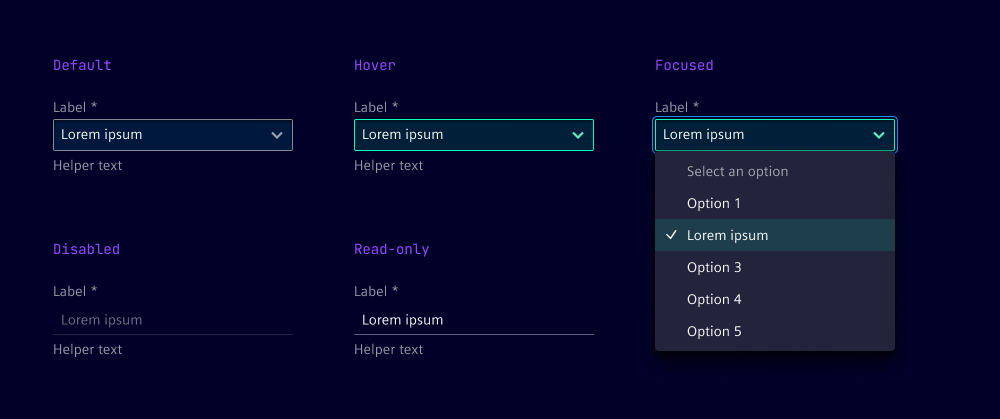
The select field has five states: default, hover, focused, disabled and read-only. In the disabled state, the input field is displayed without offering any user interaction.
Dos and Don’ts
- Do consider performance when loading an extensive list of items
- Do use the select component when there is a finite list of items available to avoid manual input errors or duplicates
- Do sort items logically, e.g. alphabetically or numerically
- Don’t use selects for binary choices, like yes and no, use radio buttons instead
- Don’t use selects for navigational or search patterns, use category filters instead
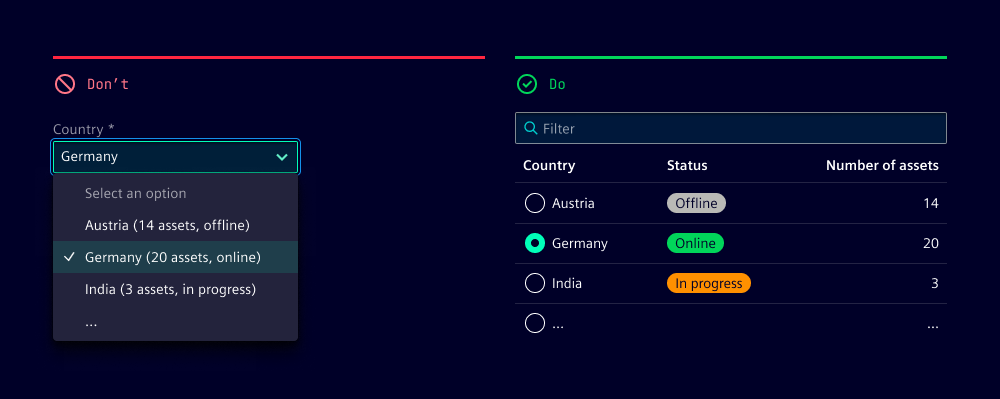
- Don’t combine several data attributes in an item label, use HTML tables or AG Grids with a search functionality instead