User message - Usage
User messages display a single prompt submitted by users in a conversational thread. We recommend using them to preserve what users asked, attached or edited so follow-up answers maintain context.
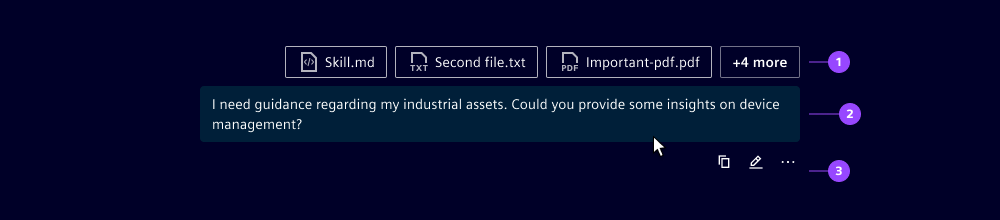
- Attachments
- Message
- Actions
Options
- Attachments: When users attach files with their prompts, show those attachments with the message to maintain context even after multiple turns in the conversation.
- Message: Show the original user input as the main message content without alterations.
- Actions: Add only the few actions users need for their own prompt, e.g. copy, edit or open a compact overflow menu. We recommend using subtle tertiary icon buttons so actions stay secondary to the message.
Behavior in context
- Interaction: User messages keep the sent prompts visible as a chat history of user input.
- Actions: Message actions are only shown when users hover over the message with a mouse, tap the message on touch devices or reach the message with the
Tabkey (for Siemens AG see the AI UX terminology guide on labelling actions). - Placement: User messages are always placed on the right side of the chat to visually distinguish them from AI messages on the left side.
- Responsiveness: User messages take from 45 to 80% of the chat's container width, depending on the viewport width.
Dos and Don’ts
- Do offer only the few actions users need after sending, e.g. copy or edit
- Do keep the messages and attachments visible as a continuous chat