Considerations
Before you start designing your specific icon set for your application, consider the following:
-
Make sure the icons you need are not already in the library
-
The icon may already exist under a slightly different name, or it may be planned for a future release. Please double-check or ask us when in doubt.
-
We recommend using generic icons instead of creating multiple, specific new ones, e.g. use the generic "add" icon instead of creating an "add-wireless-device" icon.
-
Do not create alternatives to existing icons.
-
Ask other designers within your company about the existence of an icon to prevent the creation of duplicates
-
Finally, we strongly recommend entrusting a professional designer with the task of designing an icon
Icon colors
Icons in our design system are monochromatic. They will be colored during runtime, depending on the context they are being used in. In some components we combine differently colored icons to achieve multi-color appearance.
Formal requirements
New icons should follow the app icon guidelines below for a consistent look and feel across applications. Siemens applications must follow these guidelines.
Icon design guidelines
These guidelines extend the basic guidelines on Siemens brandville.
1. Design grid
Design grid and key shapes
-
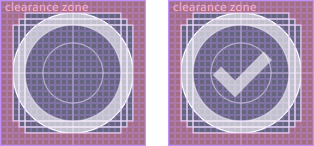
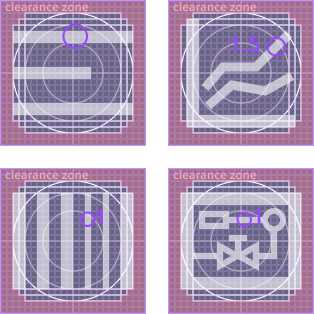
The base grid is 24×24
-
When designing icons, use the "Icon Design Grid" component from the Figma "iX UI Icons" library as your working background
-
The grid defines key shapes and a clearance zone (red area), which icons should not touch
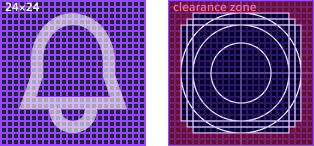
-
Choose the key shape based on icon orientation
-
Portrait key shape for vertically oriented icons
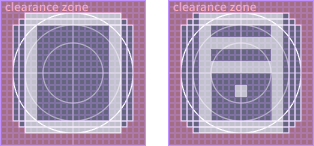
-
Landscape key shape for horizontally oriented icons
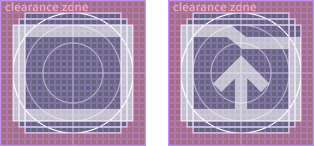
-
Square key shape for square-proportioned icons
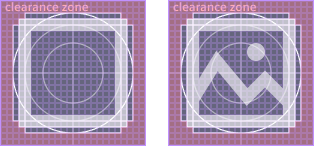
-
Circle key shape for round icons
Clearance zone exceptions
-
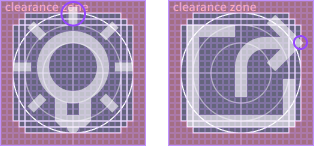
Attribute icons may extend into the clearance zone but must keep at least 1px from the outer boundary

-
For optical correction, pointed shapes or single strokes may touch the clearance zone to equalize visual weight
2. Icon style
Simple and geometric
-
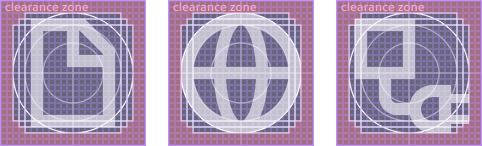
Keep icons simple
-
Build from geometric shapes with sharp corners and straight lines
-
Use rounded corners only when the character of the depicted object requires it
Stroke and fill style
-
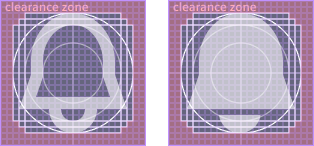
The default style is stroked/outlined
-
Optionally provide a filled variant (suffix "_filled") for use in active/toggled states or where higher visual weight is needed
Stroke width
-
Default stroke width is 2px
-
1.5px or 1px is allowed when object character or icon complexity requires it
Gaps
-
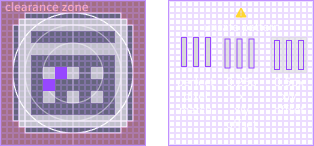
Use 2px gaps between shapes to ensure clear separation
-
Avoid unsafe patterns of alternating between set pixel and no pixel, as they may become indistinguishable at certain scales or on low-resolution displays
Strike-through, cuts and cutouts
-
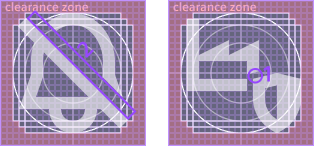
Diagonal strike-through symbolizes the opposite of an icon or an unavailability (e.g. show & hide, mute microphone, mute alarm)
-
A diagonal strike-through goes from top left to bottom right (like the diagonal stroke of letter "N" for "No"), followed by a 2px gap up-right
-
Cuts/cutouts: use at least 1px spacing, beware of unsafe patterns (see Gaps)
3. Export and technical requirements
General icon specs
Make sure your icon meets the following specifications:
- Icon name is short, descriptive and unique
- Designed at 24×24
- All strokes converted to outlines
- In Figma, all parts are combined into a single shape named "Vector"
- In Figma, all layout constraints are set to "Scale" and resizing behavior is tested
- Before you export, set the icon color to #000 to ensure proper visibility in typical SVG preview tools
- The exported SVG must contain viewBox, width and height (24×24)
- The exported SVG must not contain a
<title>element. It can cause unintended browser tooltips.
iX internal release process
On GitHub (github.com/siemens/ix-icons):
- Create branch
- Add SVG icon files to folder
incoming-svg/ - Create pull request (PR)
- Contact a maintainer to test, merge and release
In Figma:
- Set icon to iX default text color
- Convert your icon to a component
- Resize to 20×20 (iX default since v6.0)
- Prefix icon names with 🔶 as long as the release is pending to indicate the icon is not available in code yet
- Publish in Figma
Release process for custom or project-specific icons:
- Hand over SVG files to your developer
- Create a Figma component and resize it to 20×20 (iX default size since v6.0)
- Set the color to the iX default text color
- Publish the Figma component in your team assets